> ## Documentation Index
> Fetch the complete documentation index at: https://wb-21fd5541-dependabot-npm-and-yarn-scripts-css-minify-npm.mintlify.site/llms.txt
> Use this file to discover all available pages before exploring further.
# View launch jobs
> View launch job details, list available jobs, and check job statuses in the W&B App and CLI.
This page describes how to view information about launch jobs in queues. You can inspect job details in the W\&B App, list jobs from the CLI, and interpret the status of a queued run.
## View jobs
To view jobs in a queue, use the W\&B App:
1. Navigate to the W\&B App at [https://wandb.ai/home](https://wandb.ai/home).
2. Select **Launch** in the **Applications** section of the left sidebar.
3. Select the **All entities** dropdown and select the entity the launch job belongs to.
4. Expand the collapsible UI from the Launch Application page to view a list of jobs added to that specific queue.
The launch agent creates a run when it executes a launch job. In other words, each run listed corresponds to a specific job in that queue.
For example, the following image shows two runs created from a job called `job-source-launch_demo-canonical`. The job is in a queue called `Start queue`. The first run in the queue is called `resilient-snowball` and the second run is called `earthy-energy-165`.
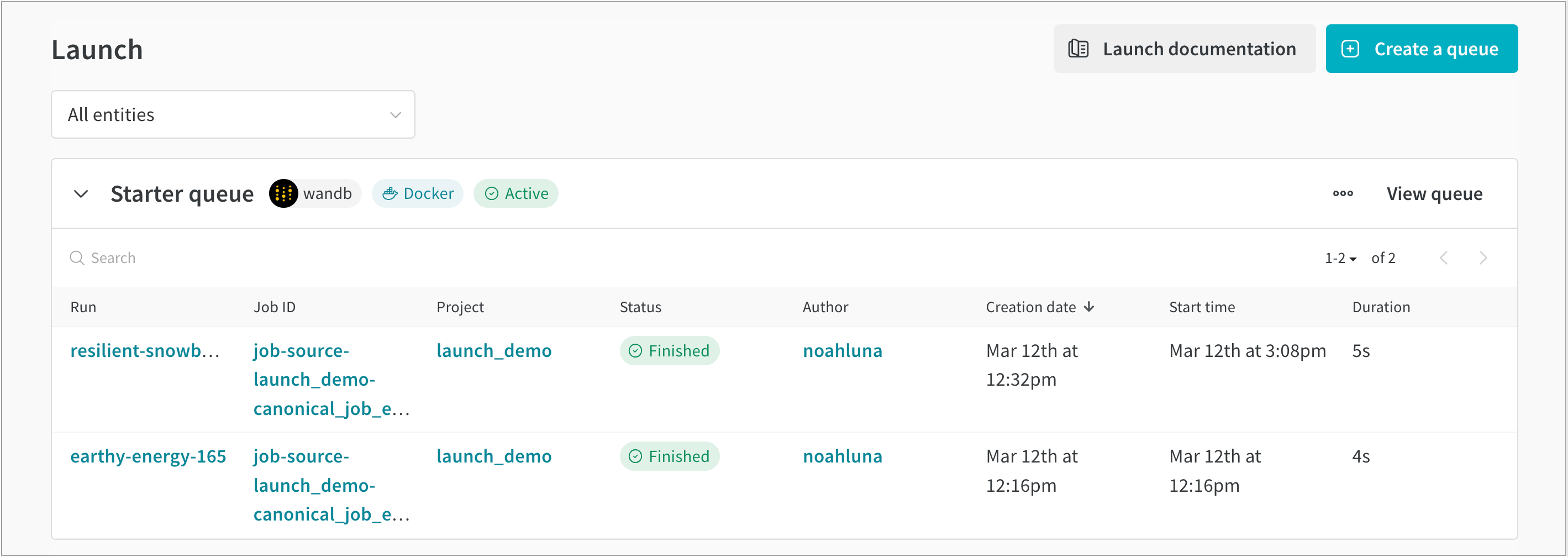 In the W\&B App UI, you can find additional information about runs created from launch jobs, such as the:
* **Run**: The name of the W\&B run assigned to that job.
* **Job ID**: The name of the job.
* **Project**: The name of the project the run belongs to.
* **Status**: The status of the queued run.
* **Author**: The W\&B entity that created the run.
* **Creation date**: The timestamp when the queue was created.
* **Start time**: The timestamp when the job started.
* **Duration**: Time, in seconds, it took to complete the job's run.
## List jobs
View a list of jobs that exist in a project with the W\&B CLI. Use the `wandb job list` command and provide the name of the project and entity the launch job belongs to with the `--project` and `--entity` flags, respectively.
Replace `[ENTITY]` with your W\&B entity, and replace `[PROJECT-NAME]` with the name of the project the launch job belongs to.
```bash theme={null}
wandb job list --entity [ENTITY] --project [PROJECT-NAME]
```
## Check the status of a job
Each queued run has a status that reflects where it is in the launch lifecycle. The following table defines the statuses a queued run can have:
| Status | Description |
| - | - |
| **Idle** | The run is in a queue with no active agents. |
| **Queued** | The run is in a queue waiting for an agent to process it. |
| **Pending** | An agent has picked up the run, but it hasn't started yet. This could be due to resources being unavailable on the cluster. |
| **Running** | The run is currently executing. |
| **Killed** | The user killed the job. |
| **Crashed** | The run stopped sending data or didn't successfully start. |
| **Failed** | The run ended with a non-zero exit code, or the run failed to start. |
| **Finished** | The job completed successfully. |
In the W\&B App UI, you can find additional information about runs created from launch jobs, such as the:
* **Run**: The name of the W\&B run assigned to that job.
* **Job ID**: The name of the job.
* **Project**: The name of the project the run belongs to.
* **Status**: The status of the queued run.
* **Author**: The W\&B entity that created the run.
* **Creation date**: The timestamp when the queue was created.
* **Start time**: The timestamp when the job started.
* **Duration**: Time, in seconds, it took to complete the job's run.
## List jobs
View a list of jobs that exist in a project with the W\&B CLI. Use the `wandb job list` command and provide the name of the project and entity the launch job belongs to with the `--project` and `--entity` flags, respectively.
Replace `[ENTITY]` with your W\&B entity, and replace `[PROJECT-NAME]` with the name of the project the launch job belongs to.
```bash theme={null}
wandb job list --entity [ENTITY] --project [PROJECT-NAME]
```
## Check the status of a job
Each queued run has a status that reflects where it is in the launch lifecycle. The following table defines the statuses a queued run can have:
| Status | Description |
| - | - |
| **Idle** | The run is in a queue with no active agents. |
| **Queued** | The run is in a queue waiting for an agent to process it. |
| **Pending** | An agent has picked up the run, but it hasn't started yet. This could be due to resources being unavailable on the cluster. |
| **Running** | The run is currently executing. |
| **Killed** | The user killed the job. |
| **Crashed** | The run stopped sending data or didn't successfully start. |
| **Failed** | The run ended with a non-zero exit code, or the run failed to start. |
| **Finished** | The job completed successfully. |